> ## Documentation Index
> Fetch the complete documentation index at: https://bruno-a6972042-mintlify-process-env-global-env-1775295055.mintlify.site/llms.txt
> Use this file to discover all available pages before exploring further.
# Import Export Environment Variables
Make sure you have Bruno version 2.14 or later installed to use this feature.
You can import and export environment variables (collection and global) to share them across teams or back them up for later use.
## Accessing Import/Export Options
1. Go to the **Environments** section (top right corner).
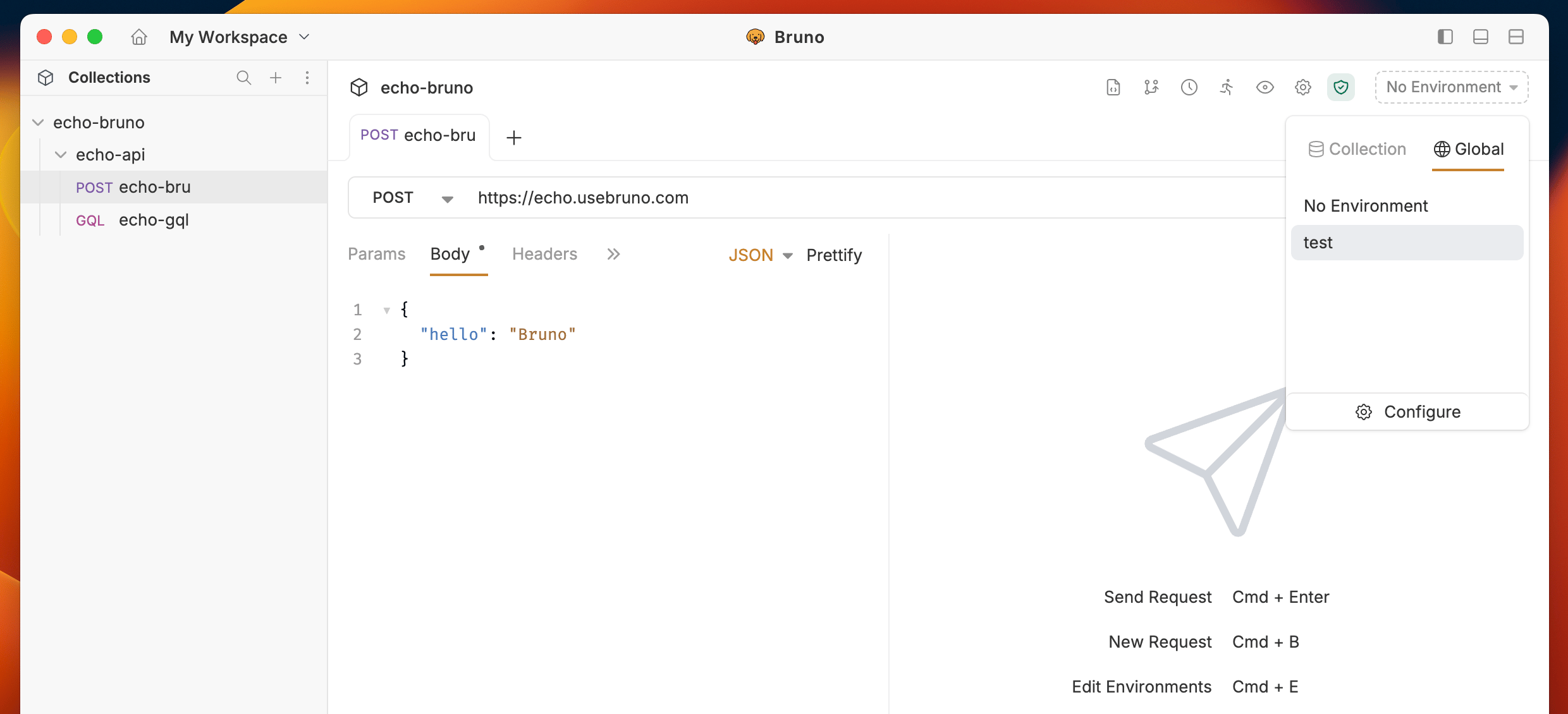 2. Click on **Configure** to access the environment settings.
3. You will see the **Import** and **Export** options in the left sidebar.
2. Click on **Configure** to access the environment settings.
3. You will see the **Import** and **Export** options in the left sidebar.
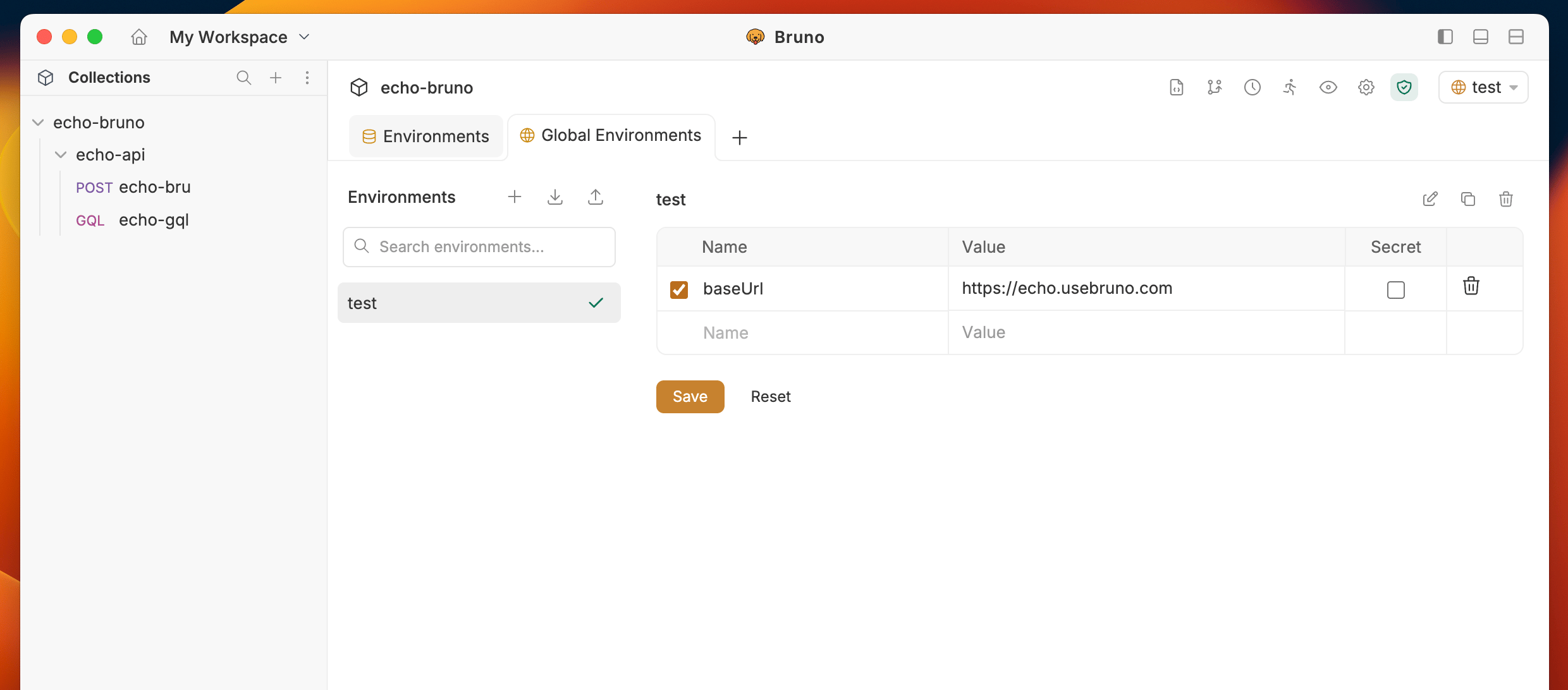 ## Importing Environment Variables
The import feature accepts environment files in both **Bruno** and **Postman** formats.
### Steps to Import
1. Click on the **Import** button in the environment configuration screen.
## Importing Environment Variables
The import feature accepts environment files in both **Bruno** and **Postman** formats.
### Steps to Import
1. Click on the **Import** button in the environment configuration screen.
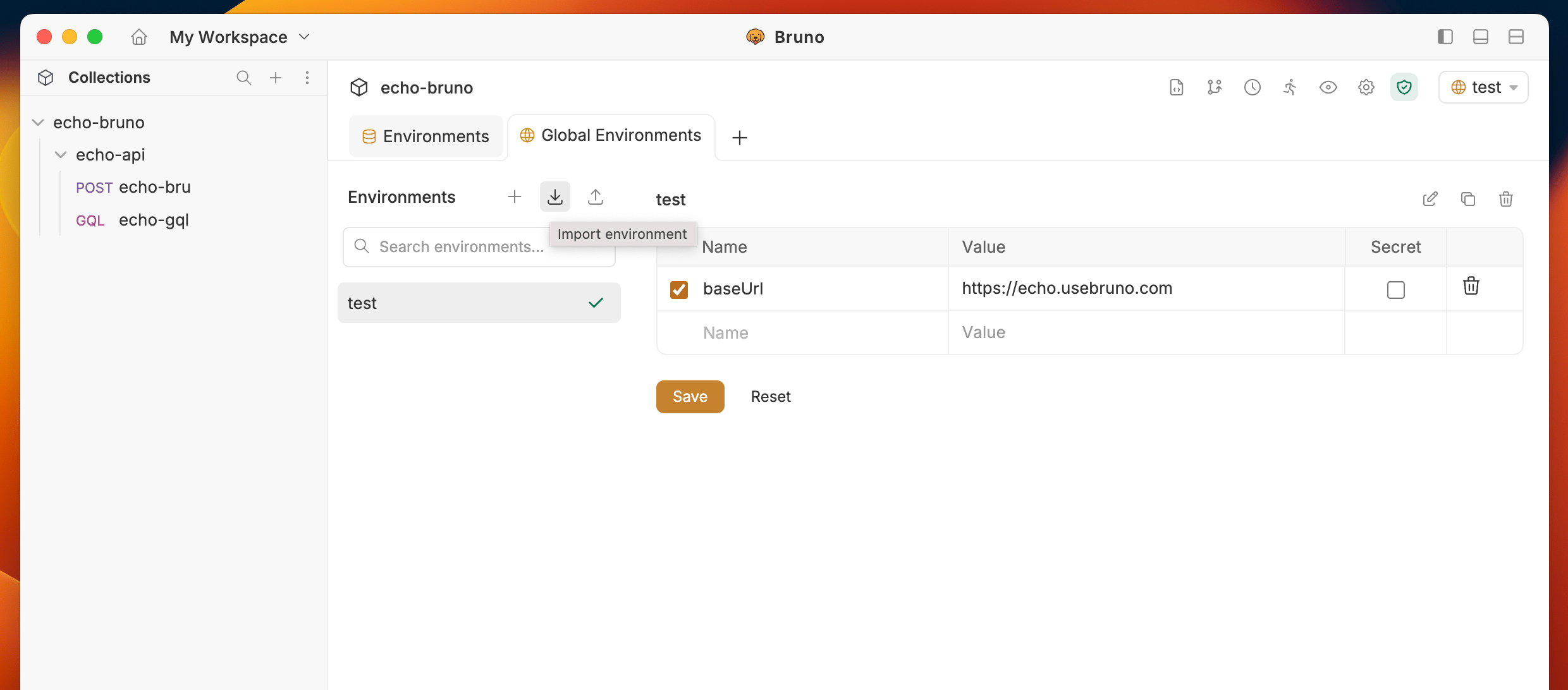 2. Select the environment file you want to import.
3. The variables will be added to your environment (global or collection, depending on which you're configuring).
2. Select the environment file you want to import.
3. The variables will be added to your environment (global or collection, depending on which you're configuring).
 ## Exporting Environment Variables
### Steps to Export
1. Go to the **Environments** section.
2. Click on **Configure**.
3. Click the **Export** button.
## Exporting Environment Variables
### Steps to Export
1. Go to the **Environments** section.
2. Click on **Configure**.
3. Click the **Export** button.
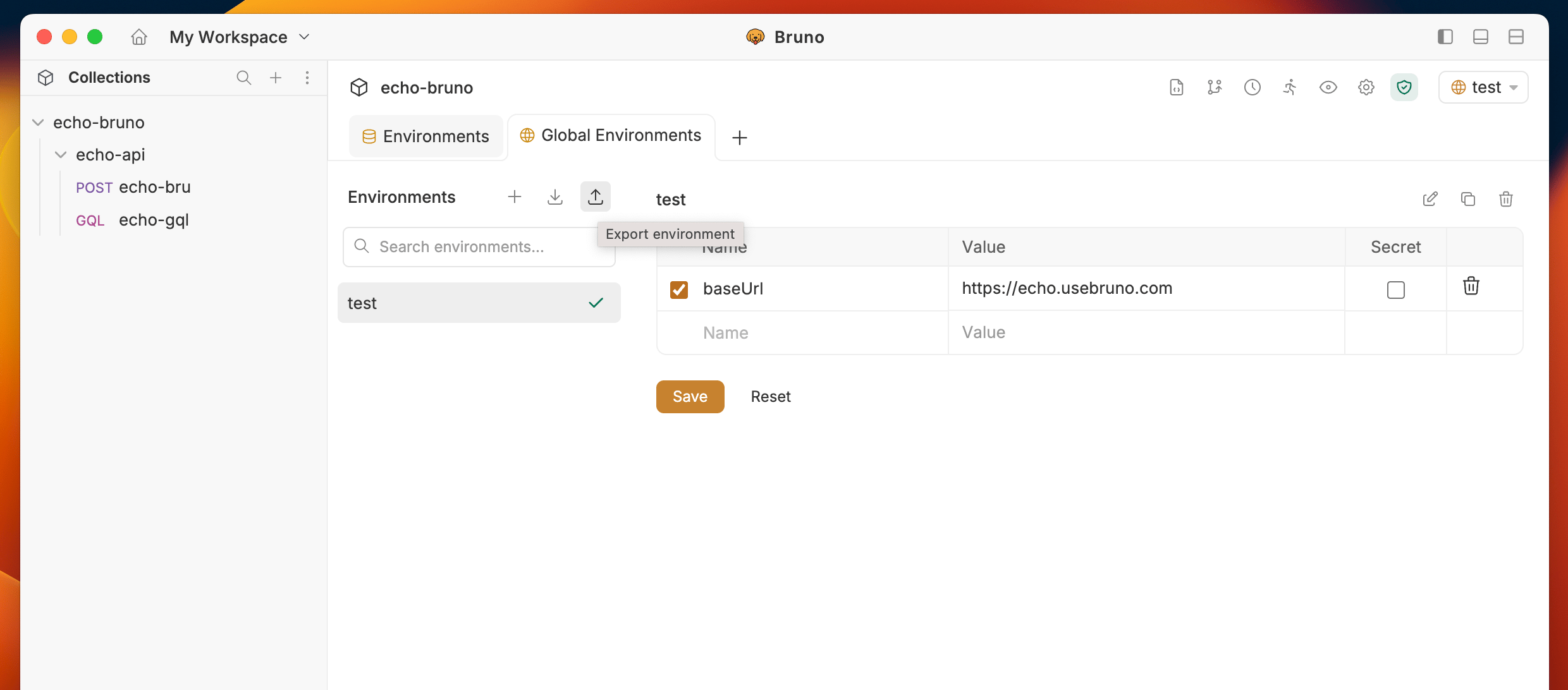 4. If you have multiple environments, select which environments you want to export.
5. Choose the location where you want to save the exported JSON file.
4. If you have multiple environments, select which environments you want to export.
5. Choose the location where you want to save the exported JSON file.
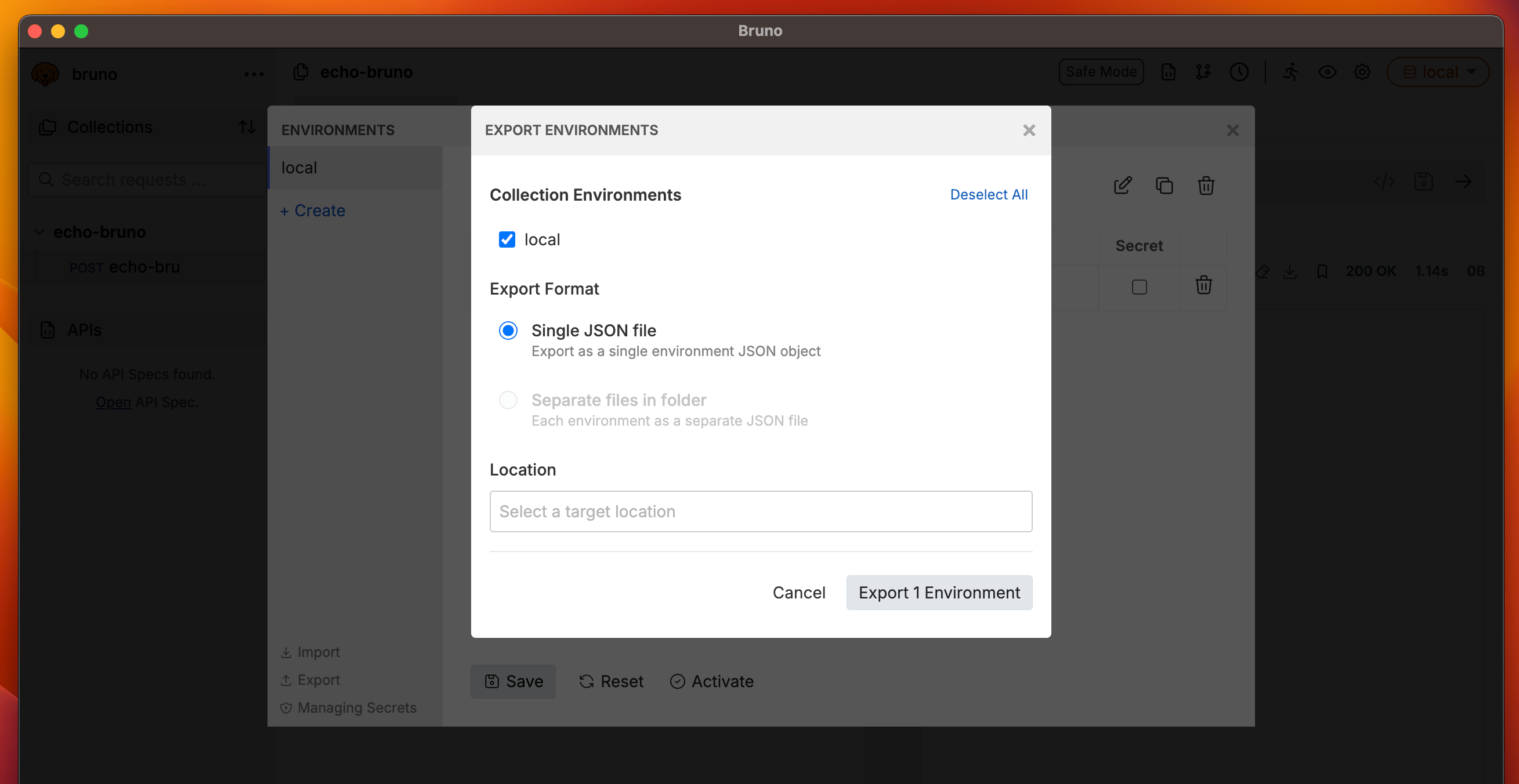 6. The environment variables will be saved as a JSON file that can be shared or backed up.
The export procedure is the same for both collection and global environment variables.
Secret variables (variables marked as secret) will not be included in the exported JSON file for security reasons.
6. The environment variables will be saved as a JSON file that can be shared or backed up.
The export procedure is the same for both collection and global environment variables.
Secret variables (variables marked as secret) will not be included in the exported JSON file for security reasons.